Showing posts with label androin on windows. Show all posts

Thursday, November 29, 2012

Download paid android app for free..!!!

Hi All,
Android market has lots of useful application for your android mobile.
But some apps are only trial version and required to full upgrade to full access of that apps.
These upgrade to full version are costly as they are paid on android market.
So here I am Provide you a nice app Applanet which provide download these paid apps for free.
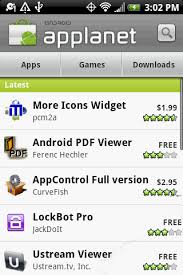
Applanet is a very great app for downloading and installing paid android apps for free. Its similar to the Installation App found on OS Devices.
Click here to download Applanet.


Features for the Applanet App :
1. Get android apps for free: This app will let you download and install android apps for free.
2. Familiar interface: This appstore has the same interface like the android market has so it will be really for you download and install from it.
3. Share your experience: This app also allows you to eave comments about the working of the aps or if they have any problem in the so that other users can see your ratings.
So guys enjoy the full version paid apps for free.

Trick to easily run Android apps on Windows PC

BlueStacks App Player is a new Android emulator that allow you to run your Android apps full screen on your windows computer.
It help you to run your android .apk files on windows pc.
Click here to download BlueStacks App Player.
Steps to Use BlueStacksApp Player:-
=> After finishing downloading, just install it on your PC system.
=> Now after completing installation you need .apk file to run on this player. Right click on .apk file and select Open with option then browse to C:Program Files-> BlueStacks-Android Apk Handler Application Program. Click OK.
=> Check the box Always use the selected program to open this file kind of file” so now with double clicking on .apk file will open in this player by default.
=> Android app will begin it’s installation. Once installed, it will show you the confirmation message that it has been installed.
=> Now launch Bluestacks from desktop and you will see newly installed .apk apps. so Run them and enjoy great android apps directly run on windows PC.

Trick to easily run Android apps on Windows PC

BlueStacks App Player is a new Android emulator that allow you to run your Android apps full screen on your windows computer.
It help you to run your android .apk files on windows pc.
Click here to download BlueStacks App Player.
Steps to Use BlueStacksApp Player:-
=> After finishing downloading, just install it on your PC system.
=> Now after completing installation you need .apk file to run on this player. Right click on .apk file and select Open with option then browse to C:Program Files-> BlueStacks-Android Apk Handler Application Program. Click OK.
=> Check the box Always use the selected program to open this file kind of file” so now with double clicking on .apk file will open in this player by default.
=> Android app will begin it’s installation. Once installed, it will show you the confirmation message that it has been installed.
=> Now launch Bluestacks from desktop and you will see newly installed .apk apps. so Run them and enjoy great android apps directly run on windows PC.

BlueStacks App Player is a new Android emulator that allow you to run your Android apps full screen on your windows computer. It help you to run your android .apk files on windows pc. Click here to download BlueStacks App Player. Steps to Use BlueStacksApp Player:- => After finishing downloading, just install it on your PC system. => Now after completing installation you need .apk file to run on this player. Right click on .apk file and select Open with option then browse to C:Program Files-> BlueStacks-Android Apk Handler Application Program. Click OK. => Check the box “Always use the selected program to open this file kind of file” so now with double clicking on .apk file will open in this player by default. => Android app will begin it’s installation. Once installed, it will show you the confirmation message that it has been installed. => Now launch Bluestacks from desktop and you will see newly installed .apk apps. so Run them and enjoy great android apps directly run on windows PC.

BlueStacks App Player is a new Android emulator that allow you to run your Android apps full screen on your windows computer.
It help you to run your android .apk files on windows pc.
Click here to download BlueStacks App Player.
Steps to Use BlueStacksApp Player:-
=> After finishing downloading, just install it on your PC system.
=> Now after completing installation you need .apk file to run on this player. Right click on .apk file and select Open with option then browse to C:Program Files-> BlueStacks-Android Apk Handler Application Program. Click OK.
=> Check the box Always use the selected program to open this file kind of file” so now with double clicking on .apk file will open in this player by default.
=> Android app will begin it’s installation. Once installed, it will show you the confirmation message that it has been installed.
=> Now launch Bluestacks from desktop and you will see newly installed .apk apps. so Run them and enjoy great android apps directly run on windows PC.

Trick to easily run Android apps on Windows PC

BlueStacks App Player is a new Android emulator that allow you to run your Android apps full screen on your windows computer.
It help you to run your android .apk files on windows pc.
Click here to download BlueStacks App Player.
Steps to Use BlueStacksApp Player:-
=> After finishing downloading, just install it on your PC system.
=> Now after completing installation you need .apk file to run on this player. Right click on .apk file and select Open with option then browse to C:Program Files-> BlueStacks-Android Apk Handler Application Program. Click OK.
=> Check the box Always use the selected program to open this file kind of file” so now with double clicking on .apk file will open in this player by default.
=> Android app will begin it’s installation. Once installed, it will show you the confirmation message that it has been installed.
=> Now launch Bluestacks from desktop and you will see newly installed .apk apps. so Run them and enjoy great android apps directly run on windows PC.

BlueStacks App Player is a new Android emulator that allow you to run your Android apps full screen on your windows computer. It help you to run your android .apk files on windows pc. Click here to download BlueStacks App Player. Steps to Use BlueStacksApp Player:- => After finishing downloading, just install it on your PC system. => Now after completing installation you need .apk file to run on this player. Right click on .apk file and select Open with option then browse to C:Program Files-> BlueStacks-Android Apk Handler Application Program. Click OK. => Check the box “Always use the selected program to open this file kind of file” so now with double clicking on .apk file will open in this player by default. => Android app will begin it’s installation. Once installed, it will show you the confirmation message that it has been installed. => Now launch Bluestacks from desktop and you will see newly installed .apk apps. so Run them and enjoy great android apps directly run on windows PC.

BlueStacks App Player is a new Android emulator that allow you to run your Android apps full screen on your windows computer.
It help you to run your android .apk files on windows pc.
Click here to download BlueStacks App Player.
Steps to Use BlueStacksApp Player:-
=> After finishing downloading, just install it on your PC system.
=> Now after completing installation you need .apk file to run on this player. Right click on .apk file and select Open with option then browse to C:Program Files-> BlueStacks-Android Apk Handler Application Program. Click OK.
=> Check the box Always use the selected program to open this file kind of file” so now with double clicking on .apk file will open in this player by default.
=> Android app will begin it’s installation. Once installed, it will show you the confirmation message that it has been installed.
=> Now launch Bluestacks from desktop and you will see newly installed .apk apps. so Run them and enjoy great android apps directly run on windows PC.

Trick to easily run Android apps on Windows PC

BlueStacks App Player is a new Android emulator that allow you to run your Android apps full screen on your windows computer.
It help you to run your android .apk files on windows pc.
Click here to download BlueStacks App Player.
Steps to Use BlueStacksApp Player:-
=> After finishing downloading, just install it on your PC system.
=> Now after completing installation you need .apk file to run on this player. Right click on .apk file and select Open with option then browse to C:Program Files-> BlueStacks-Android Apk Handler Application Program. Click OK.
=> Check the box Always use the selected program to open this file kind of file” so now with double clicking on .apk file will open in this player by default.
=> Android app will begin it’s installation. Once installed, it will show you the confirmation message that it has been installed.
=> Now launch Bluestacks from desktop and you will see newly installed .apk apps. so Run them and enjoy great android apps directly run on windows PC.

BlueStacks App Player is a new Android emulator that allow you to run your Android apps full screen on your windows computer. It help you to run your android .apk files on windows pc. Click here to download BlueStacks App Player. Steps to Use BlueStacksApp Player:- => After finishing downloading, just install it on your PC system. => Now after completing installation you need .apk file to run on this player. Right click on .apk file and select Open with option then browse to C:Program Files-> BlueStacks-Android Apk Handler Application Program. Click OK. => Check the box “Always use the selected program to open this file kind of file” so now with double clicking on .apk file will open in this player by default. => Android app will begin it’s installation. Once installed, it will show you the confirmation message that it has been installed. => Now launch Bluestacks from desktop and you will see newly installed .apk apps. so Run them and enjoy great android apps directly run on windows PC.

BlueStacks App Player is a new Android emulator that allow you to run your Android apps full screen on your windows computer.
It help you to run your android .apk files on windows pc.
Click here to download BlueStacks App Player.
Steps to Use BlueStacksApp Player:-
=> After finishing downloading, just install it on your PC system.
=> Now after completing installation you need .apk file to run on this player. Right click on .apk file and select Open with option then browse to C:Program Files-> BlueStacks-Android Apk Handler Application Program. Click OK.
=> Check the box Always use the selected program to open this file kind of file” so now with double clicking on .apk file will open in this player by default.
=> Android app will begin it’s installation. Once installed, it will show you the confirmation message that it has been installed.
=> Now launch Bluestacks from desktop and you will see newly installed .apk apps. so Run them and enjoy great android apps directly run on windows PC.